Advanced Trello: Tips and Tricks to Create Efficiencies
Advanced Trello: Tips and Tricks to Create Efficiencies
What you’ll learn
Skills you’ll gain
After you've mastered the basics of Trello, you may want to take your boards to the next level. Perhaps you’d like to gather more insight and understand how your workflows are performing? Are certain tasks dominating your bandwidth? Are you evenly distributing tasks amongst your team members? With this course, taught by productivity enthusiast and Trello expert Brittany Joiner, you'll learn the answers to these nagging questions. Brittany will show you how to implement time-saving workflow automation. Instead of manually moving cards to update fields in your Trello cards, you’ll learn brilliant ways to automate the task, and acquire the skills to build internal automation rules within your boards. She’ll teach you how to integrate Trello with tools that you use every day like Slack, Gmail, Google Sheets, GitHub, and others. Brittany will also familiarize you with the external automation guidelines that link Trello-based activity to the other tools you use. Your workflows will be next level after this advanced Trello course.
Syllabus
Download syllabus-
1
Forms by Blue Cat There are multiple ways to get data into your Trello boards. 3m
-
2
Approvals for Trello Using Approvals Power-up in Trello allows your team to visualize the status of a task's approval. 2m
-
3
Amazing Fields If you're looking for more control over custom fields on your boards, the Amazing Fields Power-Up allows you to style your fields, specify which cards they should be on, and even conditionally show fields. 3m
-
1
Dashboard view Cards are great for organizing information about a specific project, but if you want to see the bigger picture, Dashboard View aggregates your cards and shows metrics and charts about them. 3m
-
2
Table view If you prefer working in a spreadsheet, but still want the power of Trello, you can use Table View to see your cards in a row format rather than a board and list. 2m
-
3
Calendar view By assigning start and/or due dates to cards, you can visualize them in a calendar view. 2m
-
4
Timeline view The Timeline View adds a new dimension to Trello Calendar View. 2m
-
5
Map view When you include a location on your Trello cards, you can visualize them in a whole new way. 3m
-
1
Prepping Trello automations Automations are far less complicated when you start with the principles. 2m
-
2
Triggers and Actions You can apply the "when/then" statement to your Trello Rules. 2m
-
3
Building rules Rules are a specific type of automation that combine triggers and actions. 4m
-
4
Creating buttons Card and board buttons allow you to customize your automations. 4m
-
5
Due dates and calendars Being able to spot when a task is due is essential to keeping your projects on task. 4m
-
1
Syncing tools with Unito While powerful automation exists inside Trello, if you want to automate with other tools, you'll need to utilize external automation. 4m
-
2
Understanding Zapier Zapier is an external tool allowing you to build custom automations with your other tools. 4m
-
3
Trello and Google Sheets A streamlined workflow is a dream come true. After this lesson, you'll be able to connect your Trello board to Google sheets using Zapier. 3m
-
4
Trello and Google Calendar Converting your lists and calendars into supercharged sticky notes will keep you on top of all the things you need to get done. 2m
-
5
Additional resources Trello automations are a great tool for removing repetitive tasks from your workflow and saving you time. 3m
-
1
Deciding where to start Thank you for watching this course! 1m
Certificate
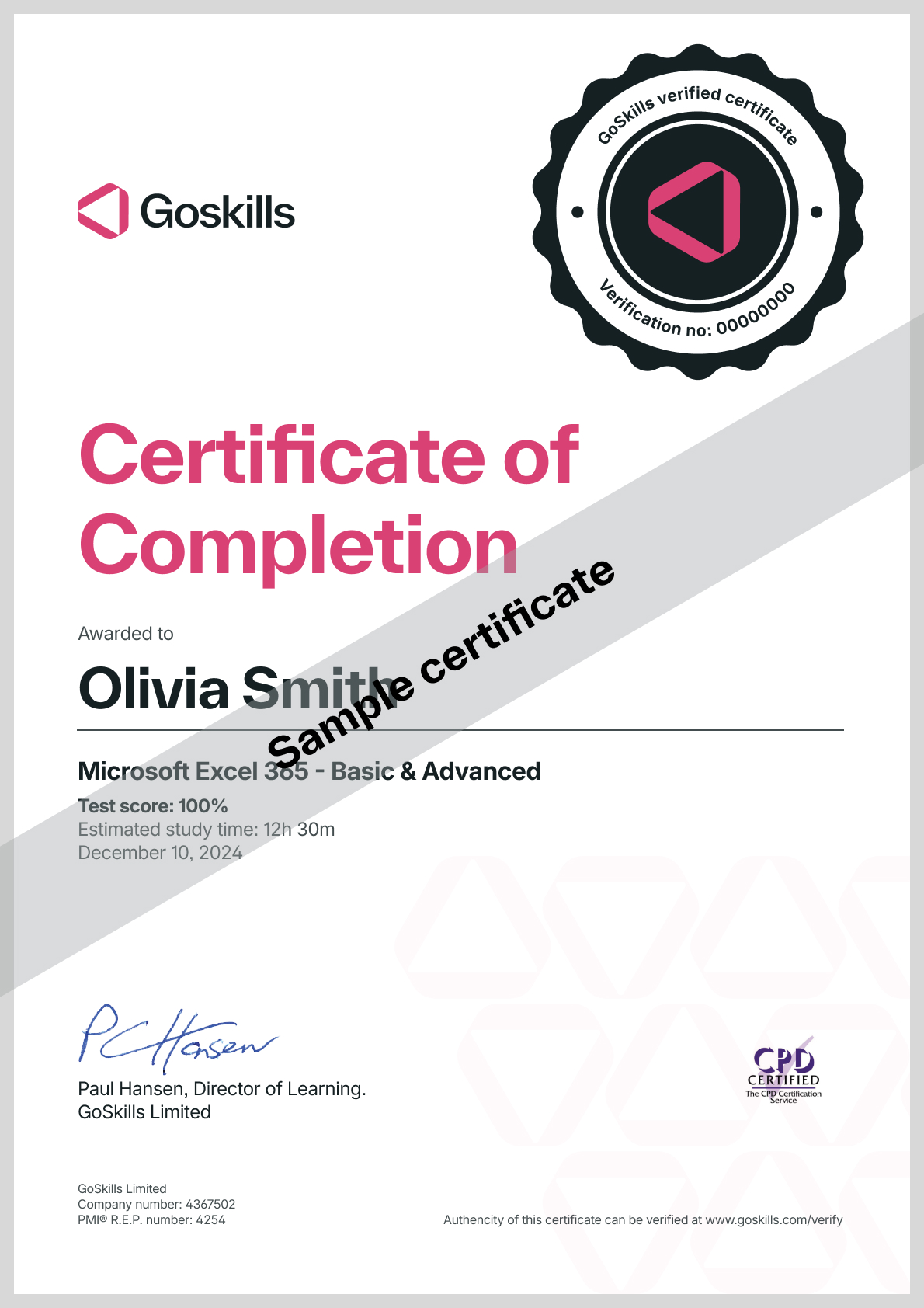
Certificate of Completion
Awarded upon successful completion of the course.
Instructor
Brittany Joiner
Brittany Joiner is a productivity enthusiast who has spent the last several years finding ways to improve workflows by simplifying the processes required to complete meaningful work timelines. By building systems with tools like Trello and automating those systems, she has inspired others to create better workflows to work smarter and not harder. Brittany is an avid Trello user and has found hundreds of use cases for Trello (she even continues to discover more!). She's an Atlassian Community Leader, member of the Community Advisory Board, and has created courses, a newsletter, and filmed videos about using Trello and automating processes.

Brittany Joiner
Front End Developer and Trello Consultant
Accreditations
Link to awards
How GoSkills helped Chris
I got the promotion largely because of the skills I could develop, thanks to the GoSkills courses I took. I set aside at least 30 minutes daily to invest in myself and my professional growth. Seeing how much this has helped me become a more efficient employee is a big motivation.