A Beginner’s Guide to Getting Started with Trello
A Beginner’s Guide to Getting Started with Trello
What you’ll learn
Skills you’ll gain
David Allen once pointed out that our brains are for having ideas, not holding them. While there are many tools to keep track of ideas and projects, Trello is the most popular because of its ease of use and powerful features that support virtually anything you may want to organize and track. It can be accessed anywhere, and allows multiple users to collaborate on projects together, which makess it the go-to tool for teams trying to accomplish, well, anything! In this course, Brittany Joiner productivity enthusiast and Trello expert, will give you a deeper understanding of what Trello is and its basic components. You'll create your first board, lists, and cards to build your own workflow for getting tasks out of your head and into action. Brittany will teach you how to add more functionality to your board via Power-Ups. At the end of this course, you'll be ready to create more boards to organize your workflows and know where to find more resources to expand your Trello knowledge.
Syllabus
Download syllabus-
1
Creating a Trello account Before starting the adventure of freeing up brain space, you'll need an account. 2m
-
2
Components of a board A board is the component that houses all your items in one place. 2m
-
3
Board configuration Collaborating with others on your board saves time from meetings and emails that could have been status updates, and styling your board makes it feel more enticing and personal. 4m
-
4
Ideal board structure Sometimes you'll keep all your cards in one board, and sometimes you'll want to move cards between multiple boards. 3m
-
1
Setting up lists Lists represent stages in your workflow (or categories for your cards) and are easy to customize and adjust. 2m
-
2
Creating your first card The core element of your Trello boards is the "card"—your supercharged sticky note. 1m
-
3
List options Lists provide several ways to perform actions to multiple cards at once. After this lesson, you'll be able to save time sorting your board. 2m
-
1
Assigning members Assigning members makes it visually clear who owns a task while allowing you to filter views by owner and get notifications. 2m
-
2
Creating labels Labels give you more ways to view your cards and even allow you to zoom into specific information. 2m
-
3
Adding dates Adding dates to a card allows you to view it in a calendar view and sends you reminders when a due date is approaching. 3m
-
4
Powerful filters Filters let you see the most relevant information on a board at any given moment. 2m
-
5
Creating checklists Checklists are a way to break your card into smaller items, such as subtasks and quality checks. 3m
-
6
Adding attachments Trello is a great home to store everything you need about a task or contact in one place. 4m
-
7
Adding custom fields Custom fields provide flexibility to sort and organize any additional types of info in your card, letting you store more data in Trello that you can view on the front of the card (or inside the card only if you prefer). 2m
-
1
Adding integrations to Trello There are hundreds of Power-Ups for connecting Trello to other tools you use, or providing more functionalty, views, or reports. 3m
-
2
Must-have power-ups Since there are hundreds of Trello Power-Ups it might feel overwhelming knowing where to start. 3m
-
3
Understanding pricing Trello offers multiple pricing plans which offer a variety of options but can make it challenging to know exactly what you need. 3m
-
1
Bringing it all together Thank you for watching this course! 1m
Certificate
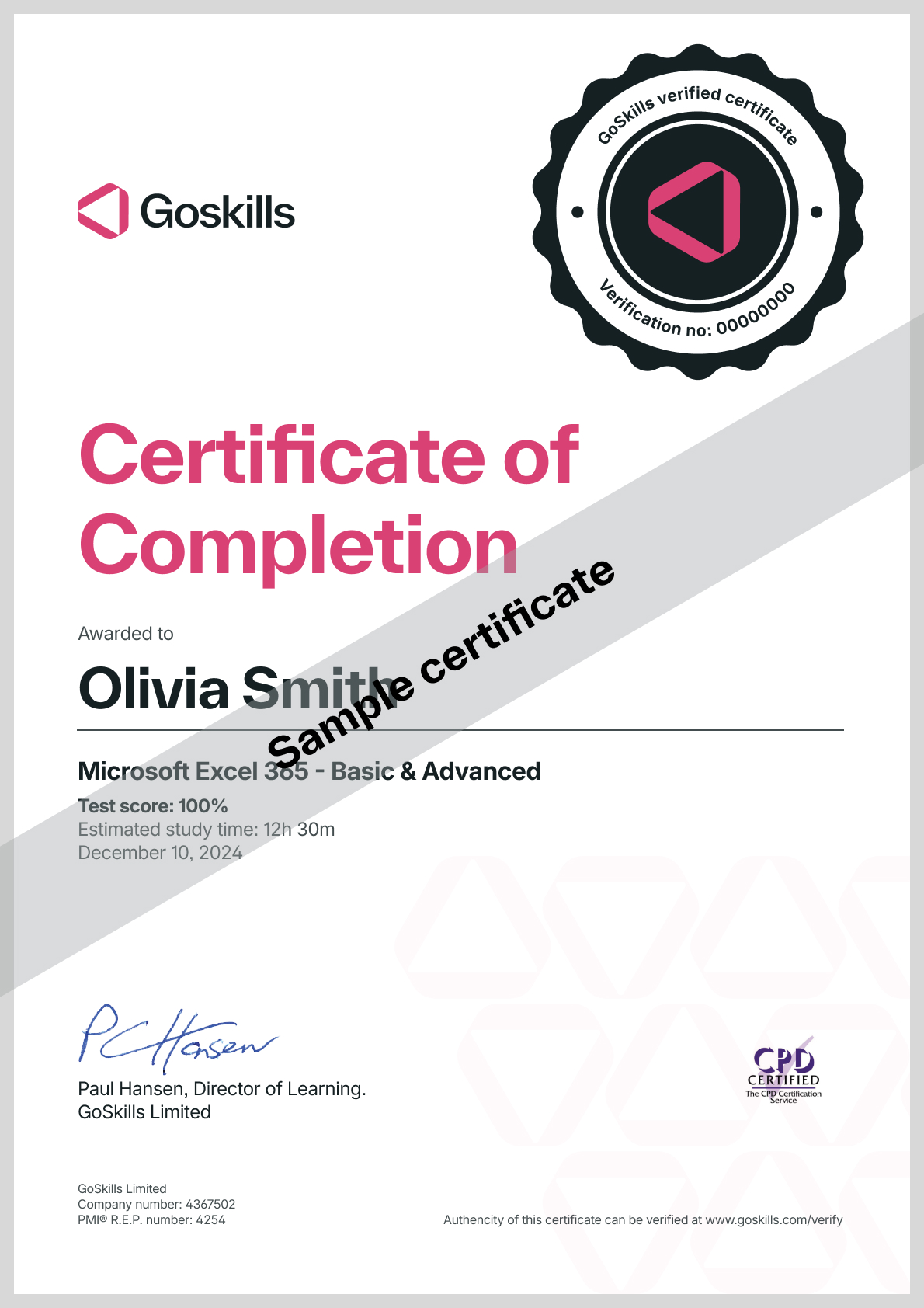
Certificate of Completion
Awarded upon successful completion of the course.
Instructor
Brittany Joiner
Brittany Joiner is a productivity enthusiast who has spent the last several years finding ways to improve workflows by simplifying the processes required to complete meaningful work timelines. By building systems with tools like Trello and automating those systems, she has inspired others to create better workflows to work smarter and not harder. Brittany is an avid Trello user and has found hundreds of use cases for Trello (she even continues to discover more!). She's an Atlassian Community Leader, member of the Community Advisory Board, and has created courses, a newsletter, and filmed videos about using Trello and automating processes.

Brittany Joiner
Front End Developer and Trello Consultant
Accreditations
Link to awards
How GoSkills helped Chris
I got the promotion largely because of the skills I could develop, thanks to the GoSkills courses I took. I set aside at least 30 minutes daily to invest in myself and my professional growth. Seeing how much this has helped me become a more efficient employee is a big motivation.