Copilot for Microsoft 365 Applications (2026)

Copilot for Microsoft 365 Applications (2026)
Skills you’ll gain
Transform your daily workflow with Copilot for Microsoft 365 Applications, led by Microsoft MVP Deborah Ashby. This practical course is designed to make working with AI easier within the Microsoft tools you use every day. You will learn:
- AI Fundamentals: Learn the basics of generative AI, its limitations, and correct prompting techniques.
- Excel & PowerPoint: Discover how to build functional Excel dashboards from scratch and generate polished PowerPoint presentations in seconds.
- Word & Outlook: Draft documents using reference files, instantly convert lists to tables, summarize lengthy email threads, and optimize your writing tone.
- Teams & OneNote: Automatically extract task assignments from meeting transcripts, generate post-meeting reports, and use the new Copilot Notebooks.
- Copilot Cowork: Get a first look at this brand-new, game-changing feature.
By the end of this course, you will have a clear roadmap to integrate Copilot into your routine and complete your daily tasks with greater speed and confidence.
Syllabus
Download syllabus-
1
Get Data Insights Use Copilot in Excel to uncover trends, summaries, and insights instantly from your data. 6m
-
2
Sort and Filter Data Quickly Use Copilot in Excel to Sort and Filter data quickly using simple prompts. 3m
-
3
Apply and Manage Conditional Formatting Rules Apply and manage Conditional Formatting Rules in Excel using Copilot with simple, natural language prompts. 5m
-
4
Clean Messy Datasets Fast Clean messy data in Excel using Copilot to fix errors, remove duplicates, and standardize data. 4m
-
5
Formula Wizardry Build, debug, and optimize formulas in Excel using Copilot with prompts and clear explanations. 5m
-
6
Dashboards Made Simple Build a dynamic dashboard in Excel using Copilot to visualize and track key metrics. 4m
-
7
Practice Exercise: Excel Practice some of the skills you've learnt in this section of the course 1m
-
1
Create Presentations from Scratch Create presentations from scratch in PowerPoint using Copilot to generate slides, content, and visuals fast. 5m
-
2
Work with Company Templates and Copilot Use Copilot in PowerPoint to apply company templates and create on-brand slides fast. 4m
-
3
Edit Presentations - Text, Images and Notes Edit slides in PowerPoint using Copilot - refine text, images, and speaker notes quickly. 5m
-
4
Turn Documents and PDFs into Decks Turn documents and PDFs into decks in PowerPoint using Copilot to generate slides fast. 3m
-
5
Present Better with Copilot Tips Get real-time coaching in PowerPoint using Copilot to improve tone, clarity, and delivery. 7m
-
6
Practice Exercise: PowerPoint Practice some of the skills you've learnt in this section of the course 1m
-
1
Draft a Document Draft documents in Word using Copilot to create clear, structured content fast. 3m
-
2
Convert PDFs and Slide Decks to Documents Convert PDFs and slides to editable docs in Word using Copilot quickly. 5m
-
3
Turn Lists into Tables Instantly Turn lists into structured Word tables instantly using Copilot with simple prompts. 3m
-
4
Ask Questions and Get Answers Ask questions of documents in Word using Copilot to extract insights fast. 1m
-
5
Practice Exercise: Word Practice some of the skills you've learnt in this section of the course 1m
-
1
Recap Live Meetings Recap meetings in Teams using Copilot to get summaries, actions, and decisions fast. 4m
-
2
Post Meeting AI Summaries and Reports Create post-meeting summaries and reports in Teams using Copilot to capture key actions and insights. 5m
-
3
Create a OneNote Copilot Notebook Create a Copilot Notebook in OneNote to organize content, capture ideas, and use Copilot for summaries and insights. 3m
-
4
Practice Exercise: Teams and OneNote Practice some of the skills you've learnt in this section of the course 1m
-
1
Write Better Emails Write clearer emails in Outlook using Copilot to draft, refine tone, and improve clarity fast. 4m
-
2
Summarize and Reply to Emails Summarize long Outlook emails and reply faster using Copilot to draft clear, professional responses. 6m
-
3
Create Inbox Rules Fast Use Copilot to automate the creation of Outlook inbox rules. 3m
-
4
Write Smarter Emails with Copilot Coach Write smarter emails in Outlook using Copilot Coach to refine tone, clarity, and impact. 4m
-
5
Practice Exercise: Outlook Practice some of the skills you've learnt in this section of the course 1m
-
1
What is Copilot Cowork? Discover what Copilot Cowork is and how it can be helpful to streamline multi-step tasks. 6m
-
2
Cowork Example 1: Analyze Excel Data Use Copilot Cowork to execute multiple steps in a workflow to analyze Excel data. 7m
-
3
Cowork Example 2: Deep Research Use Copilot Cowork inbuilt templates to conduct deep research on an organization. 5m
-
4
Cowork Example 3: Create Presentations Use Cowork to execute a multi-step process that builds an effective PowerPoint presentation and emails it to colleagues. 4m
-
5
Practice Exercise: Copilot Cowork Practice some of the skills you've learnt in this section of the course 1m
-
1
Course Close and Instructor Sign Off Wrap up the course with key takeaways, next steps, and a final sign-off from your instructor. 1m
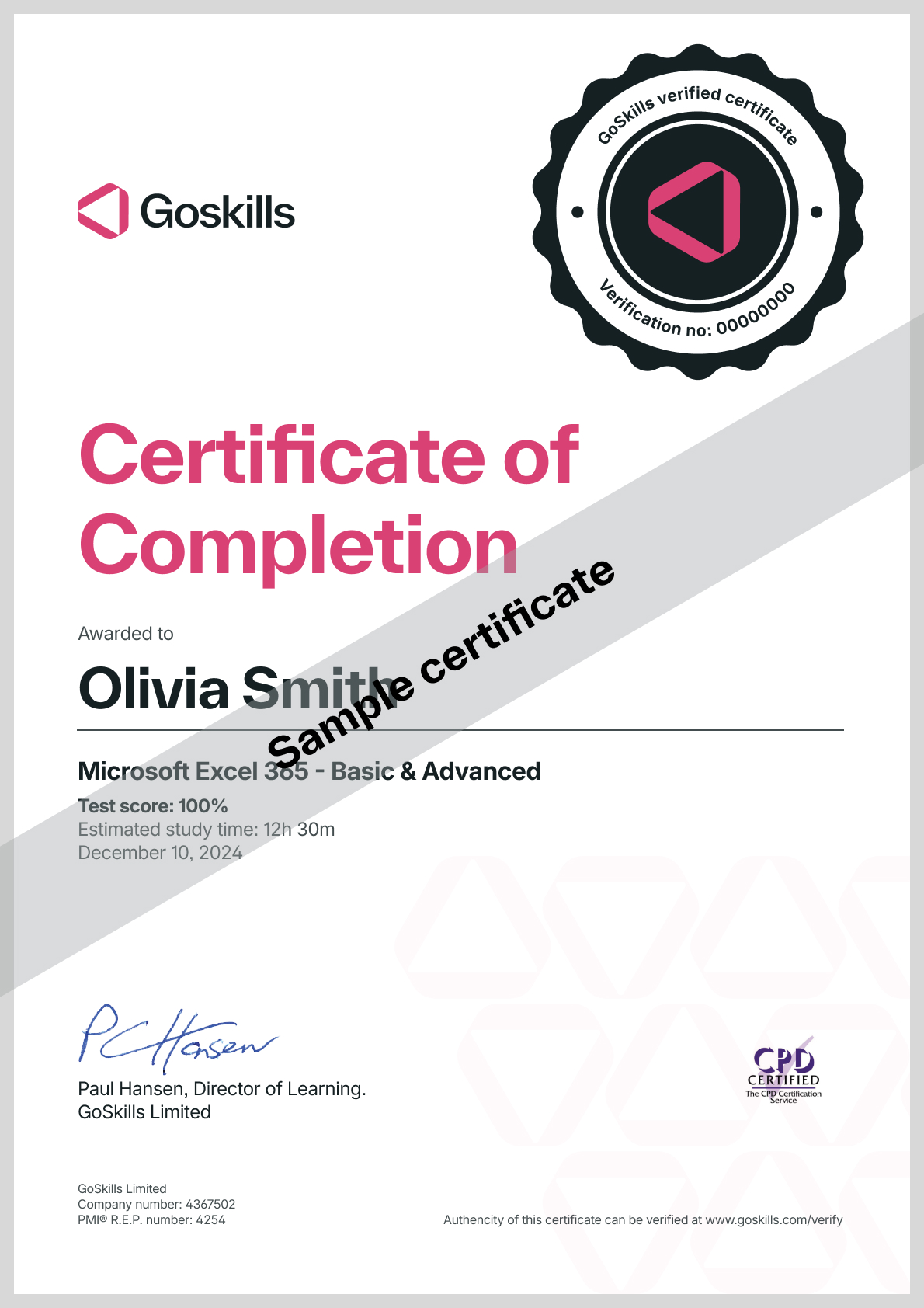
Certificate
Certificate of Completion
Awarded upon successful completion of the course.
Instructor
Deborah Ashby
Deborah is a Microsoft MVP and TAP Accredited Microsoft Instructor and Content Creator specializing in the design and development of online training courses and video content.
Since the mid-1990s, she has been involved in the IT industry, starting her career on an IT Helpdesk for an airline at the tender age of 16. This sparked a passion for travel, and in 1997, she left the U.K. and moved to Melbourne, Australia, where she furthered her career as an Operations Analyst and programmer.

Deborah Ashby
Microsoft MVP and Trainer
Accreditations
Link to awards

How GoSkills helped Chris
I got the promotion largely because of the skills I could develop, thanks to the GoSkills courses I took. I set aside at least 30 minutes daily to invest in myself and my professional growth. Seeing how much this has helped me become a more efficient employee is a big motivation.