Excel Advanced: Useful Array Formulas and Functions
Excel Advanced: Useful Array Formulas and Functions
What you’ll learn
Skills you’ll gain
This course is designed for users of Excel who want to gain a thorough understanding of some more advanced formulas. These functions are extremely useful for manipulating text, arrays, and doing business analysis. Billy covers some of the most used functions such as SUMIFS, COUNTIFS, MAX, and FILTER. You will also learn some of the more recent array functions such as XLOOKUP, TEXTSPLIT, VSTACK, and others. Whether you’re a seasoned user or new to Excel, this course will help you become more proficient and efficient with a few advanced functions.
Syllabus
Download syllabus-
1
Managing multiple criteria SUMIFS is an extremely powerful Excel function that is useful when you have multiple criteria in your data. 3m
-
2
Counting item appearances COUNTIFS can count a list of numbers and return the total of the number of times that each item appears in the list. 3m
-
3
Calculating averages The AVERAGEIFS Excel function is used to determine the average value for a specified range of cells in an Excel worksheet based on multiple criteria. 4m
-
4
Finding items The XLOOKUP function can help you find things in a table or range by row. 3m
-
5
Calculating maximum values The MAX Excel function can help you get the maximum value of all cells in a range. 4m
-
6
Specifying conditions The MAXIFS function in Excel is one of the functions which returns the maximum value of a column from an array of data, specified by a given set of conditions or criteria. 3m
-
7
Filtering cells FILTER is a simple but very useful Excel function. 4m
-
8
Finding the largest values The LARGE function calculates the largest number in a group based on its relative standing. 4m
-
1
Returning text with TEXTBEFORE The TEXTBEFORE function will remind you of the Text-to-Columns tool except it is easier to use. 4m
-
2
Returning text with TEXTAFTER The TEXTAFTER function is the opposite of the TEXTBEFORE function. 2m
-
3
Splitting text strings Have you ever used the Text-to-Columns wizard when you want to separate a text string into multiple cells? 4m
-
4
TEXTSPLIT (Bonus) Use the TEXTSPLIT function to create an array from a data string. 1m
-
1
Stacking data vertically Combining large-scale data is a challenge for any project, especially when the sources are flexible in size. 3m
-
2
Stacking data horizontally HSTACK does the same as VSTACK, except that with HSTACK your data will be stacked horizontally. 4m
-
1
Shaping arrays into rows Changing the "shape" of your data in Excel can be difficult when you are going from arrays to lists and vice versa. 4m
-
2
Shaping arrays into columns TOCOL is another way to shape your arrays. After this lesson, you'll be able to use the TOCOL function to return the array you select into one column. 4m
-
3
Wrapping row arrays Using the WRAPROWS function is a way of "wrapping" your data. After this lesson, you will be able to use WRAPROWS to wrap a row array into a 2D array. 3m
-
4
Wrapping column arrays WRAPCOLS is identical to WRAPROWS except it intuitively applies to columns instead of rows. 3m
-
1
Decreasing data in arrays Too much data in your arrays? 4m
-
2
Excluding rows and columns Another way to resize your array is by using the DROP function. 3m
-
3
Viewing specific rows Two other functions that you can use to resize your arrays are, CHOOSEROWS, and CHOOSECOLS. 3m
-
4
Viewing specific columns When you want to see only certain columns from an array you can use the CHOOSECOLS function. 3m
-
5
Growing an array The EXPAND function lets you grow an array to the size you specify. 4m
-
1
Practice makes perfect Thank you for watching my course! 1m
Certificate
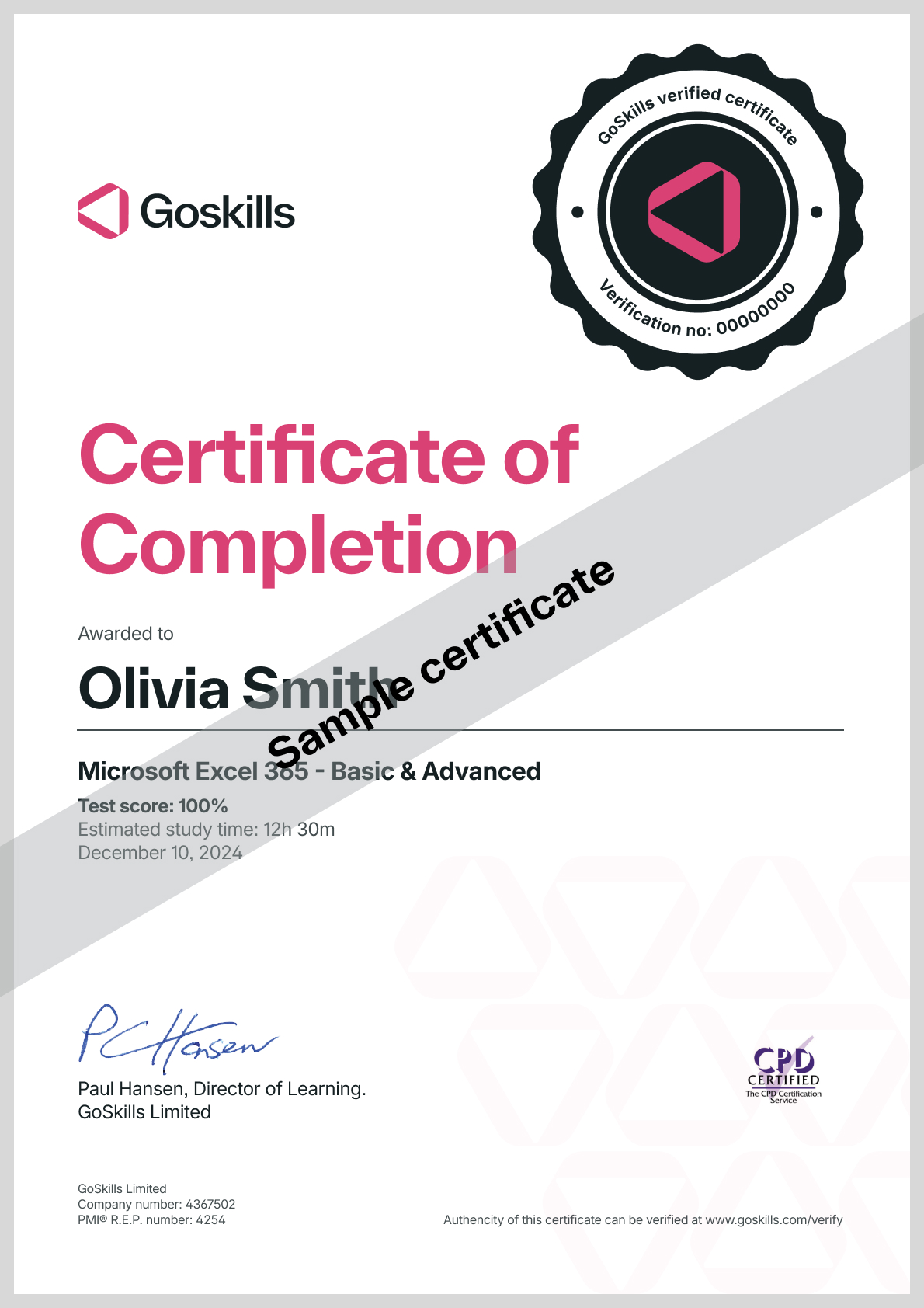
Certificate of Completion
Awarded upon successful completion of the course.
Instructor
Billy Wigley
As a Microsoft Certified Trainer, Billy Wigley is a Microsoft Office Expert in Excel. He has traveled throughout the USA and other countries to teach Excel skills to thousands of students. He currently has more than 40,000 active students across 149 countries. Billy Wigley also consults with emergent business owners on their plans and projects to ensure success. With over 25 years of leadership experience, Billy Wigley is well-known around the world. With his strong American and Colombian heritage, Billy Wigley takes pride in his multi-cultural background and being able to reach both English and Spanish speakers around the globe.

Billy Wigley
Microsoft Certified Trainer and Entrepreneur
Accreditations
Link to awards
How GoSkills helped Chris
I got the promotion largely because of the skills I could develop, thanks to the GoSkills courses I took. I set aside at least 30 minutes daily to invest in myself and my professional growth. Seeing how much this has helped me become a more efficient employee is a big motivation.