Adobe Premiere Pro for Beginners
Adobe Premiere Pro for Beginners
Skills you’ll gain
Unlock your creative potential with the Adobe Premiere Pro beginner course. We bypass the steep learning curve by focusing on the essential tools and the latest AI-powered features that define modern video editing. From organizing your first project to mastering the "magic" of the Object Mask Tool and Enhanced Speech AI, you will learn the professional workflows used by top creators to produce high-quality, cinematic content for YouTube, social media, and beyond.
What you will learn:
- Advanced Cutting: Master J-cuts, L-cuts, and match cuts for seamless storytelling.
- AI Masking & FX: Subject tracking, background replacement, and custom motion graphics.
- Pro Color Grading: Using Lumetri Scopes, RGB Curves, and LUTs to style your footage.
- Smart Audio Mixing: Auto-ducking music and AI-driven vocal repair for crystal-clear sound.
- Precision Exporting: Optimizing bitrates and codecs for perfect uploads every time.
By the end of this course, you will have the confidence to transform raw footage into polished, professional stories. You'll walk away with a mastery of the Premiere Pro interface and a high-end technical toolkit ready to tackle any creative project.
Syllabus
Download syllabus-
1
How to Navigate the Timeline Explore the essential components of the Premiere Pro timeline, including timecode navigation, playhead shortcuts, and track management. 7m
-
2
The Toolbar: Selection Tool, Track Select, Razor Tool, Hand Tool, Remix tool, and Ripple Delete Action Master the essential editing tools, including the Selection, Ripple Edit, Remix, and custom shortcuts for efficient cutting. 8m
-
3
The Toolbar: Type Tool and Graphics Tools Learn to use the Type and Shape tools to create custom text, adjust typography properties like kerning and leading, and layer graphic elements. 8m
-
4
Put It All together: Create a Simple Edit Put your skills to the test by building a YouTube trailer from scratch, utilizing the full workflow from project creation to final assembly. 8m
-
5
Transcription-Based Editing Overview Speed up your workflow with Text-Based Editing: learn to transcribe clips, bulk-delete pauses, and edit video by simply deleting text. 7m
-
6
Transcription-Based Editing: Creating and Exporting Captions Learn how to generate, style, and export professional captions from your transcript while fixing text errors for a polished final product. 4m
-
1
Effect Controls Panel: Motion Menu Master the Effect Controls panel by using position, scale, and rotation to perfectly center and frame your subjects in post-production. 6m
-
2
Effect Controls Panel: Opacity Menu Master Opacity and Blending Modes to create organic transitions, stylized text overlays, and professional film-burn effects. 7m
-
3
Effect Controls Panel: Time Remapping Menu Master time remapping to speed up, slow down, or reverse footage, and learn to create smooth, professional speed ramps using the Pen tool. 8m
-
4
Effects Control Panel: Audio Menu Master audio mixing by adjusting levels to prevent clipping, balancing dialogue with background music, and using panning for immersive sound design. 7m
-
5
Effects Library Explore Adobe Premiere’s Video Effects library to style your footage with tints and blurs, and learn to animate effect properties using keyframes. 6m
-
6
Keyframing Made Easy! Master advanced keyframing to create custom slide transitions and animated text, using temporal interpolation and directional blur. 8m
-
7
Intro to Masks and Mask Tools Learn the fundamentals of masking using the Rectangle, Ellipse, and Pen tools to create picture-in-picture effects and custom background replacements. 7m
-
8
Creating Mask Paths Master the AI-powered Object Mask Tool to automatically track subjects and create professional effects like "text behind subject" and cloning. 7m
-
9
Video Transitions Master Premiere Pro's standard video transitions, including Cross Dissolves, Morph Cuts for jump cuts, and customized sliding transitions. 7m
-
10
Creating Custom Transitions Create a professional custom transition by layering film burns, animating position with Bezier curves, and using directional blur to sell the motion. 7m
-
11
Film Transitions Learn the art of cinematic storytelling by mastering Jump Cuts, J-cuts, L-cuts, and Match Cuts to improve the pacing and "finesse" of your edits. 5m
-
12
Graphics Templates Learn to use and customize Motion Graphics Templates (MOGRTs) to add professional, pre-animated branding and social media elements to your projects. 5m
-
1
The Lumetri Color Panel and Lumetri Scopes Master the basics of color correction with Lumetri Scopes and using the Basic Correction panel to fix white balance, exposure, and tonal range. 7m
-
2
Basic Color Correction Master RGB Curves and use Adjustment Layers to fix technical errors across multiple clips at once. 7m
-
3
Color Correcting Skin Tones Master HSL Secondary to isolate skin tones and use the Vectorscope to ensure professional, natural-looking color results. 7m
-
4
Basic Color Grading Learn to apply stylistic color grades using LUTs, Color Wheels, and hue-based curves to give your footage a unique narrative tone. 7m
-
1
Sound Design Set up your professional audio workspace and learn the fundamentals of layering dialogue, music, and SFX for a balanced mix. 5m
-
2
Audio Mixing: Cleaning Audio Master the AI Essential Sound panel to automatically tag audio, enhance vocal clarity, and repair noisy recordings with professional presets. 7m
-
3
Audio Mixing: Adjusting Music Levels Learn to use the Ducking Tool to automatically lower music levels behind dialogue, and explore the Duration tool for quick music re-timing. 4m
-
4
Audio Mixing: SFX and Enhancing the Edit Learn to mix immersive soundscapes using Stereo Width, Reverb presets, and Auto-Matching to ensure SFX and ambience support your story. 7m
-
1
The Export Screen Master Premiere Pro’s export settings, learn the importance of H.264 and bitrates, and create custom presets for high-quality YouTube uploads. 7m
-
2
Exporting Your Project Learn to set In/Out points, use the Quick Export tool, and burn in captions for a perfect final delivery. 5m
-
1
Congratulations! Thank you for taking this course - now challenge yourself with your own video project! 1m
Certificate
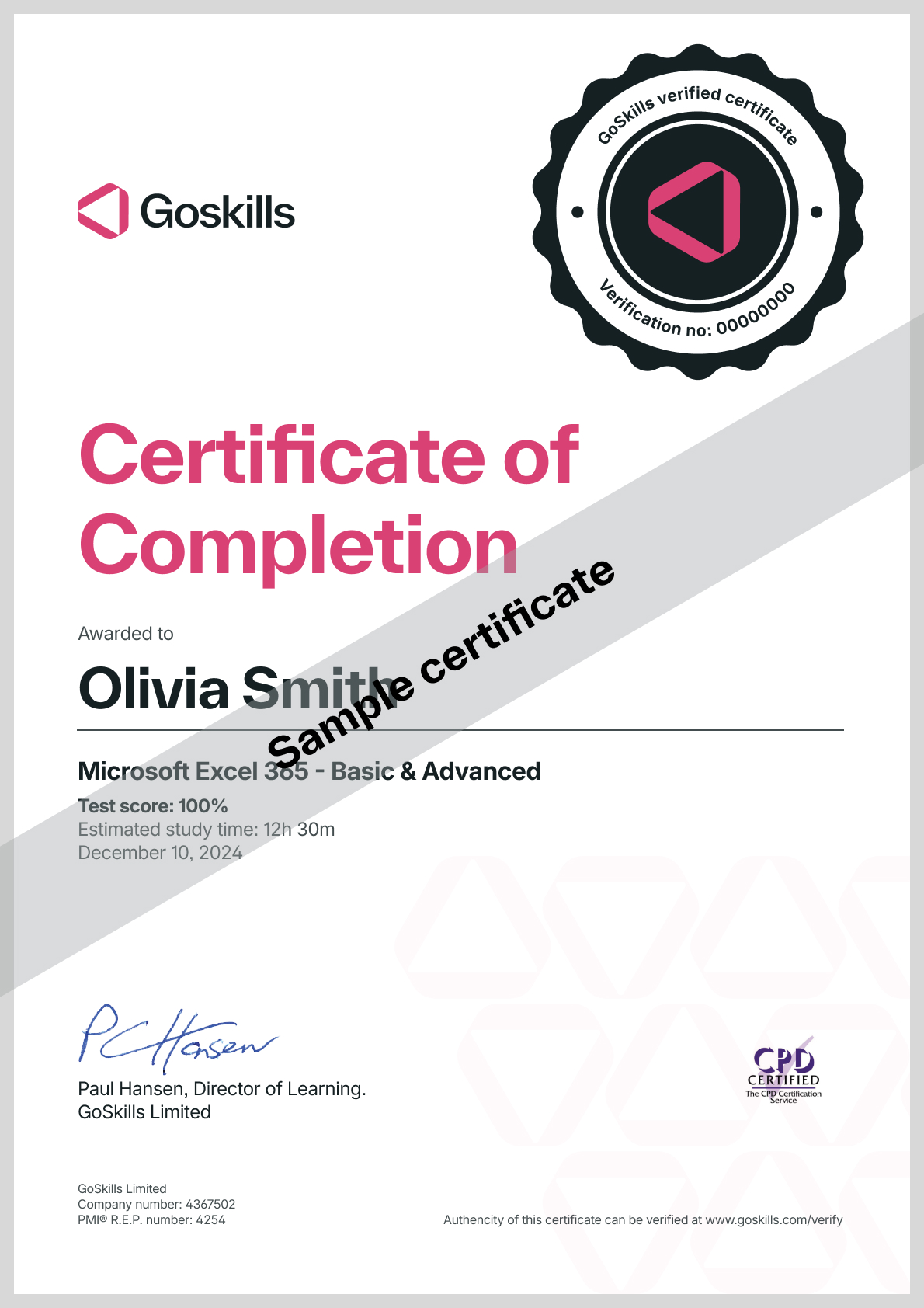
Certificate of Completion
Awarded upon successful completion of the course.
Instructor
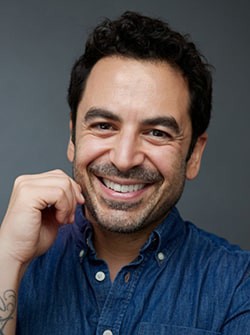
Eric Vasquez
Eric is an Art Director, designer and multidisciplinary artist who has worked for a variety of high profile clients including Nickelodeon, Oxygen, World Wrestling Entertainment, Spike TV, and Major League Baseball.
Eric has been in two art exhibits including The Art of Fashion at Webster Hall and he is a member of two international art collectives - Cosmosys and the Luminarium. He is an active member of the online design community with many of his designs being featured on popular design blogs, and has also had his work published in Advanced Photoshop Magazine.
Eric Vasquez
Art Director and Designer
Accreditations
Link to awards

How GoSkills helped Chris
I got the promotion largely because of the skills I could develop, thanks to the GoSkills courses I took. I set aside at least 30 minutes daily to invest in myself and my professional growth. Seeing how much this has helped me become a more efficient employee is a big motivation.