
Can you build a report that consolidates data from multiple sheets in Excel, using just formulas? That’s exactly what this challenge is all about!
Learn how to consolidate data from multiple sheets in Excel in a real-world scenario that puts your lookup and referencing skills to the test.
To participate:
- Watch the challenge video and read the instructions.
- Download the Excel worksheet you will use to complete the challenge tasks.
- Share your solution in the GoSkills Learners Community on Slack to get feedback and learn from others’ approaches!
The scenario 🖼️
Qafur has just started his new role as a Sales Analyst at a fast-growing retail company. In his third week, his manager hands him a challenge:
Qafur, I need a report that shows the total sales amount for each sales manager. The data is spread across yearly worksheets from 2019 to 2025. No manual copy-pasting — just a solid, dynamic summary.
It’s time to impress!
The dataset 📑
The Excel workbook contains multiple worksheets, one for each year from 2019 to 2025. Each yearly sheet includes:
- Name
- Surname
- Sales Amount, $
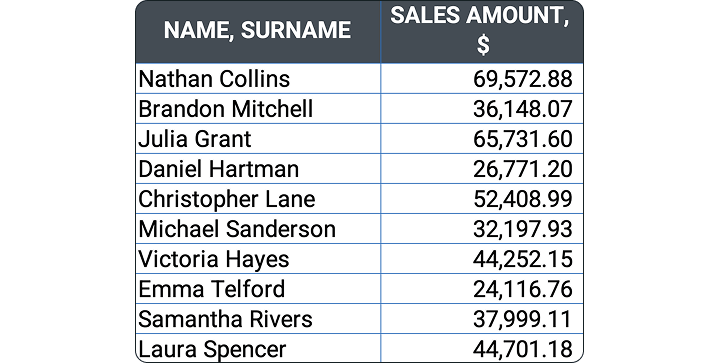 Your job is to consolidate all of it.
Take the challenge
Download the challenge file and show us what you’ve got!
The task 🏋️
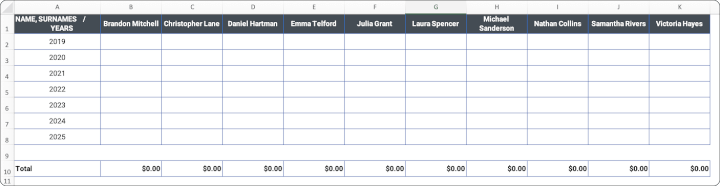
In one workbook, build a clean, dynamic report that:
- Populates a summary table showing total sales per sales manager per year
- Adds totals per sales manager across all years
- Highlights the highest single-year sales figure by any manager
Your final output should:
- Be dynamic (update when data changes)
- Use formulas only to consolidate data from the sheets (no manual copy-paste)
The clues 🕵️
Using formulas only to consolidate data might have made you scratch your head, so here’s a quick nudge:
The INDIRECT function returns a cell or range reference based on a text string. This makes it especially useful when pulling data from different sheets dynamically.
We’ll leave it there!
Put yourself to the test ⏱️
Ready to get cracking? Download the challenge file and don’t forget to join the GoSkills Learners Community on Slack, where other Excel enthusiasts are sharing their solutions too!
Take the challenge
Download the challenge file and show us what you’ve got!
Expert’s solution 🤓
Here’s my take on how to consolidate data from multiple sheets in Excel using formulas only:
So, there you go!
Want to learn more?
Want to master more multi-sheet reporting tricks? Check out our Microsoft Excel - Basic & Advanced course featuring MVP Ken Puls. You'll learn everything from dynamic arrays to advanced lookups — including how to consolidate data from multiple sheets in Excel like a pro.
Stay sharp, keep learning, and we’ll see you in the next challenge!

Join the Excel conversation on Slack
Ask a question or join the conversation regarding Excel challenges on our Slack channel.
Join Slack channel