
With so many moving parts to track, businesses depend on Microsoft Excel to make sense of it all. Teams use it to balance budgets, plan projects, analyze data, and get work done. Without powerful spreadsheets, everyday tasks across finance, marketing, operations, and other areas of the business would be far more time-consuming.
Excel’s familiar grid interface has helped organizations manage data and calculations for decades. Meanwhile, advanced features like PivotTables, Power Query, and VBA macros give teams powerful ways to analyze data, automate repetitive tasks, and work more efficiently.
In this guide, we’ll explore how Microsoft Excel training can help your team save time, sharpen their Excel skills, and get more value from their data. We’ll also cover what to look for when comparing Excel training courses, whether you’re considering a free Excel crash course or building a more structured learning path for your team.
Why Excel training matters for business
Microsoft launched Excel in 1987, so the software might seem due for retirement. Instead, it remains a workplace staple, with tight integration into Microsoft’s automation, AI, and business intelligence tools. A joint study by Capital One and Burning Glass Technologies found that Excel and Office skills are required for 83% of clerical and administrative roles, along with a majority of positions in engineering, management, and sales and marketing. It’s hard to argue that Excel isn’t still one of the most important tools in the modern workplace.
And that demand isn’t slowing down. GoSkills’ own Upskilling Forecast found that 29% of L&D decision-makers named Excel the single most in-demand skill for their workforce, ahead of most other technical skills on their radar. If your team’s Excel training has been sitting at the bottom of the priority list, the data suggests it’s worth moving back up.
All organizations — including small businesses managing their finances and growing companies that need to analyze monthly, quarterly, or annual performance — can use Excel to help them answer important questions with data. Excel solutions range from basic bookkeeping to answering strategic questions with Power Query. With Excel, teams gain insights to make better-informed decisions, like:
- Are we actually making money? Dozens of free Excel templates are available for balance sheets, income statements, and cash flow tracking.
- Have we reduced waste? Conditional formatting and formulas help teams track metrics and quickly flag inefficiencies.
- Which channel drives the best ROI? PivotTables and data visualization can turn raw numbers into actionable insights in minutes.
Excel skills for business: 5 use cases
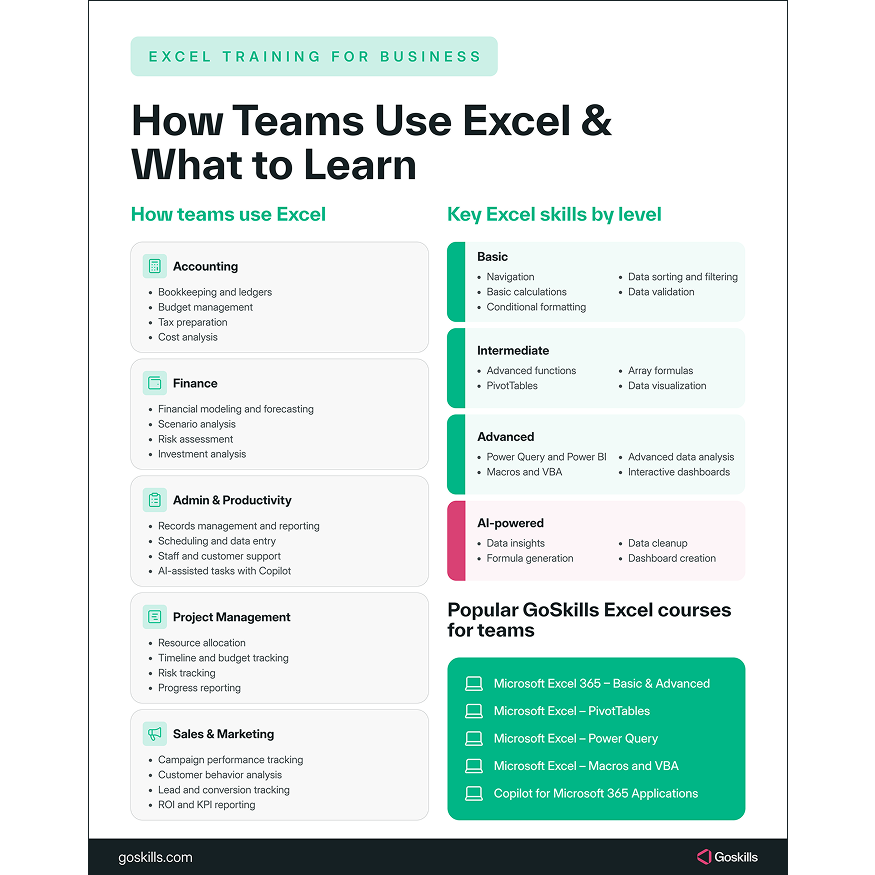
Excel skills show up differently depending on the role. Here’s how different teams use Excel and which skills matter most for the work they do:
1. Accounting
Excel’s rows and columns naturally lend themselves to traditional accounting ledgers. Bookkeepers, small business owners, and finance teams rely on Excel formulas for budget management, tax preparation, and cost analysis. Basic arithmetic, currency formatting, and conditional formatting can cover many day-to-day accounting needs. Employees looking to build these skills can start with GoSkills’ Excel for Accounting course, which is completely free and includes a Continuing Professional Development (CPD)-accredited certificate upon completion.
2. Finance
Bankers, wealth advisors, and business analysts use Excel for financial modeling, financial analysis, and forecasting. A financial analyst might rely on array formulas, PivotTables, and data visualization to build scenario models and evaluate potential outcomes. Actuaries go a step further, using Excel to analyze large datasets and assess risk for borrowers, lenders, and insurers. For professionals who regularly turn business data into actionable insights, GoSkills’ Excel for Business Analysts course offers targeted training in practical Excel skills.
3. Admin and productivity
Admin professionals keep businesses running by managing records, preparing reports, and supporting staff and customers. Beyond core Excel skills, many can now pair Excel with Copilot to speed up repetitive work, from generating quick summaries and drafting formulas from plain-language prompts to cleaning up messy data without writing a single VBA macro. This can make more advanced Excel capabilities accessible even to non-technical team members.
4. Project management
Projects can range from a small website redesign to a major event. While dedicated project management tools like Monday.com and Trello exist, Excel remains a practical option for tracking resources, timelines, and costs, particularly for smaller projects or individual workstreams within larger ones.
5. Sales and marketing
Marketing has long been seen as a creative discipline, but data now plays an equally important role in shaping strategy. Sales and marketing teams use Excel, and often Google Sheets for lighter collaborative work, to track performance and optimize campaigns. With charts, statistical formulas, and data analysis tools, teams can spot buying patterns, better understand customer behavior, and identify opportunities to improve conversion rates. Employees looking to strengthen these skills can take GoSkills’ Excel for Marketers course for free and earn a CPD-accredited certificate upon completion.
What to look for in Excel training courses
Not every team needs the same training. The right starting point depends on the Excel skills your employees have today and what their roles require them to do.
- Beginner. If your team is new to spreadsheets, look for Excel training courses that cover navigation, basic calculations, conditional formatting, and data sorting. A short Excel crash course can be a practical way to help non-specialists get comfortable with the fundamentals.
- Intermediate. Once the basics are solid, the next step is learning more advanced functions, PivotTables, array formulas, and data visualization. These skills help employees move beyond basic spreadsheet tasks and start using Excel as a more powerful analysis tool.
- Advanced Excel. For analysts, finance teams, and employees building dashboards or working with larger datasets, look for courses covering Power Query, Power BI, macros, Visual Basic for Applications (VBA), and interactive reporting. At this level, Excel skills increasingly overlap with the tools and techniques used in data analysis.
A few other things are worth checking before you commit your team to an Excel course:
- Free vs. paid. Free Microsoft Excel courses can be a great way to explore a topic, test the learning format, or get started with specific skills. For broader team development, a structured learning path can make it easier to build skills progressively and keep training on track.
- Certification. Look for courses that offer recognized credentials, such as CPD accreditation, so employees have something meaningful to show for the skills they’ve developed.
- Format. Self-paced, mobile-friendly Excel online training gives employees the flexibility to learn when and where it works for them, which can be especially useful for distributed teams.
- Real-world practice. Look for courses built around realistic datasets, exercises, and practical scenarios rather than theory alone. Applying new skills is an important part of turning Excel knowledge into something employees can use on the job.
Excel training courses for employees: A sample learning path
If you’re not sure where to start, here’s one way to take a team from spreadsheet fundamentals to automation and using artificial intelligence (AI) in Excel. The courses are sequenced so employees can build on the skills they develop along the way:
- Microsoft Excel 365 - Basic & Advanced — start with navigation and formulas before progressing to PivotTables, macros, charts, and dynamic arrays. No prior Excel experience is needed, making this a strong foundation for the courses that follow.
- Microsoft Excel - Pivot Tables — build on those introductory PivotTable skills with layouts, calculated fields, slicers, timelines, and automated refreshes. These skills help employees turn raw data into organized, useful reports.
- Excel Charts for Data Visualization — learn practical chart design principles and explore more than 20 chart types, from column and line charts to waterfall, funnel, and map charts.
- Microsoft Excel - Dashboards — bring those visualization skills together with conditional formatting, form controls, and PivotTables to create interactive dashboards. The course videos were recorded in Excel 2016, so the interface may look a little different from current versions, but the core techniques still apply.
- Microsoft Excel - Power Query or Microsoft Excel - Macros and VBA — move into automation based on your team’s needs. Power Query can turn repetitive data cleaning and transformation into a repeatable process, while Macros and VBA teach employees how to automate repetitive Excel tasks with code. Choose based on whether your team’s bigger challenge is preparing messy data or reducing repetitive manual work.
- Copilot for Microsoft 365 Applications — round out the learning path by exploring how Microsoft Copilot can support Excel tasks such as analyzing data, cleaning datasets, working with formulas, applying conditional formatting, and building dashboards. The course also covers Copilot across other Microsoft 365 applications, including PowerPoint, Word, Outlook, Teams, and OneNote, making it useful for broader AI skills across the workplace.
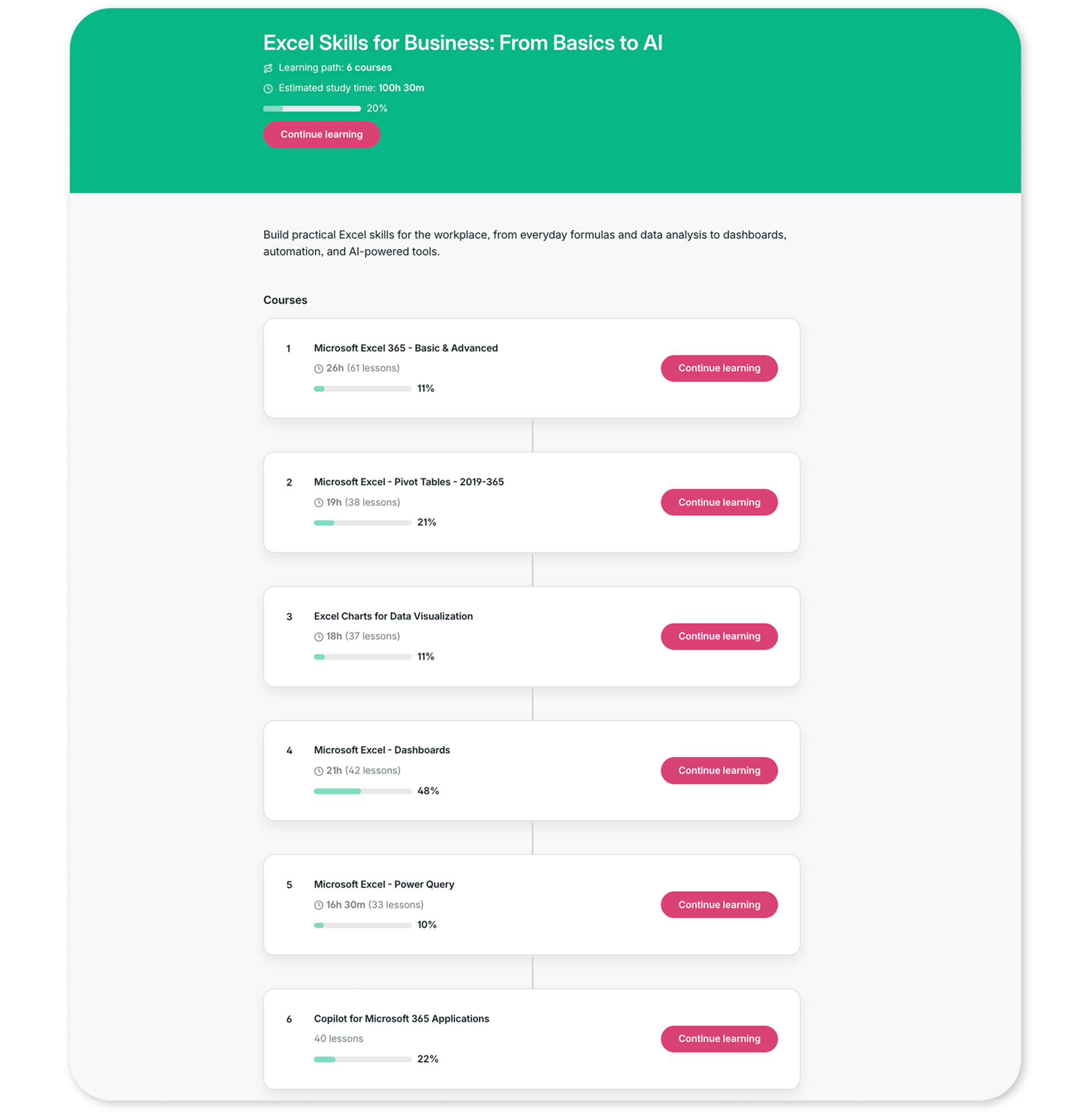
This is just one possible path. Different roles call for different Excel skills, so an accounting team’s learning path may look different from one designed for a sales or data team. For example, a Business Intelligence (BI)-focused team might move Power Query directly after PivotTables, before progressing to charting and dashboards.
Rather than building and managing these paths manually for every department, GoSkills’ Learning Management System (LMS) lets you create tailored learning paths, assign training by role or team, and track progress across your organization from one dashboard.
Experience the difference
Start transforming the way your organization learns — no credit card required. Get started in minutes!
Create your free account nowFrequently asked questions (FAQs) about Excel training for business
1. Is Excel training worth it for a small business?
Yes. Excel is widely used for financial, operational, reporting, and administrative tasks, so improving employees’ Excel skills can save time, reduce manual work, and help teams get more value from their data. Even a short Excel crash course can help employees become more confident with everyday spreadsheet tasks.
2. What’s the difference between free Microsoft Excel courses and paid training?
Free Microsoft Excel courses can be a great way to build specific skills or explore a training provider before committing to a larger program. Paid training may offer a broader curriculum, additional learning resources, certification, and tools for tracking employee progress. For businesses, the best option depends on the skills employees need, the size of the team, and how much structure and oversight the training requires.
3. What Excel skills should employees learn first?
Start with the fundamentals: navigating spreadsheets, entering and formatting data, using basic formulas and functions, sorting and filtering data, and applying conditional formatting. From there, employees can progress to skills such as PivotTables, data visualization, Power Query, macros, and VBA depending on their roles.
4. How long does it take to learn Excel for business use?
Employees can learn basic Excel skills, such as navigation, simple formulas, and formatting, relatively quickly with focused training. More advanced skills like Power Query, macros, financial modeling, and dashboard creation take longer to develop and benefit from regular, hands-on practice.
Excel training that works for your team
The right Excel training can help your team work more efficiently, make sense of data, and solve everyday business problems with confidence. And as Excel continues to evolve, from formulas and PivotTables to Power Query, dashboards, automation, and AI, there’s always an opportunity to build new skills.
With GoSkills, Excel training for business is flexible and practical. Your team can learn from carefully selected experts, including Microsoft Most Valuable Professionals (MVPs) like Ken Puls and Deb Ashby, through short, bite-sized lessons designed to fit around the workday. With courses for different roles and skill levels, employees can focus on the Excel skills most relevant to their work.
And Excel is just the beginning. The GoSkills training library includes 500+ expert-led courses across business skills, from data analysis, coding, and technology to office productivity, project management, leadership, and more.
Ready to build your team’s Excel skills? Create a free GoSkills business account to explore the training library, unlock up to 10 lessons per course, and access a selection of completely free courses. No credit card required.
Experience the difference
Start transforming the way your organization learns — no credit card required. Get started in minutes!
Create your free account now