Google Forms: A Beginner’s Guide
Google Forms: A Beginner’s Guide
What you’ll learn
Skills you’ll gain
Have you ever needed to collect data and present it in an easy to understand presentation format? In this course, you will learn how Google Forms, Google Sheets, Google Slides, and Google Sites can work togeher to create a dynamic data dashboard to help you showcase data and create a compelling story for your next presentation. Learn how to create your first Google Form survey, turn it into a self-graded quiz, expand your user experience through spider charts and build graphs in Google Sheets that can be displayed in Google Slides and Google Sites. If you are looking for the ultimate Google based online tutorial, this is the one for you!
Syllabus
Download syllabus-
1
Creating Google Forms There are a few ways that you can begin creating Google Forms. 1m
-
1
Understanding layout In order to get the most out of the Google Forms application, it's important that you know how to add questions, adjust settings, and share your Google Forms with others. 1m
-
2
Naming your Google Form Choosing the appropriate name for your Google Form can offer several benefits to you and your users. 2m
-
3
Creating surveys Google Forms are commonly used to create and deliver surveys. 2m
-
4
Multiple choice questions Incorporating multiple choice questions into your Google Form is one way to help you collect, organize, and analyze results. 3m
-
5
Sharing your Google Form Being able to share your Google Form with others is an important skill to have to ensure you are making the most out of the application. 2m
-
1
Self-graded quizzes Grading and/or providing feedback can be time-consuming. 3m
-
2
Response options The benefits of Google Forms don't have to end after a user has completed the form. 1m
-
3
Presentation options Customizing the user experience within Google Forms can be very simple and straightforward. 2m
-
4
Setting form defaults Creating default settings for your Google Forms is a great way to help streamline the Google Form creation process. 1m
-
5
The response tab Reviewing survey results and analyzing responses can help you make more informed decisions. 2m
-
6
Making copies and deleting Knowing how to make copies and delete Google Forms is essential to keeping your Google Drive organized. 1m
-
1
Advanced question types Sometimes multiple choice answers are not sufficient in providing the desired data. 3m
-
2
Changing themes Customizing the themes of your Google Forms is one way to make your forms more engaging and visually appealing. 1m
-
3
Adding sections Adding sections can help make Google Forms feel shorter and more manageable for the user. 1m
-
4
Adding graphics and videos Having graphics and videos that the user can reference can help make your Google Forms more engaging and user-friendly. 3m
-
5
Analyzing data One very appealing aspect of Google Forms is their ability to generate immediate data. 1m
-
1
Creating "spider forms" "Spider Forms" are a great way to make the user experience more engaging and customized for the user. 2m
-
2
Creating pre-filled forms Pre-filled forms can help reduce the amount of time it takes users to complete a Google Form. 2m
-
3
Working with collaborators Working with collaborators can help you divide and conquer, and it allows each individual to contribute their unique strengths and skills to the Google Form. 2m
-
1
Exporting data Using Google Forms in tandem with Google Sheets can help you get the most out of your Google Form. 1m
-
2
Creating charts Creating charts and graphs from your Google Form data can be a great way to help you visualize your data and make more informed decisions. 2m
-
1
Time to create Thank you for watching this course! 1m
Certificate
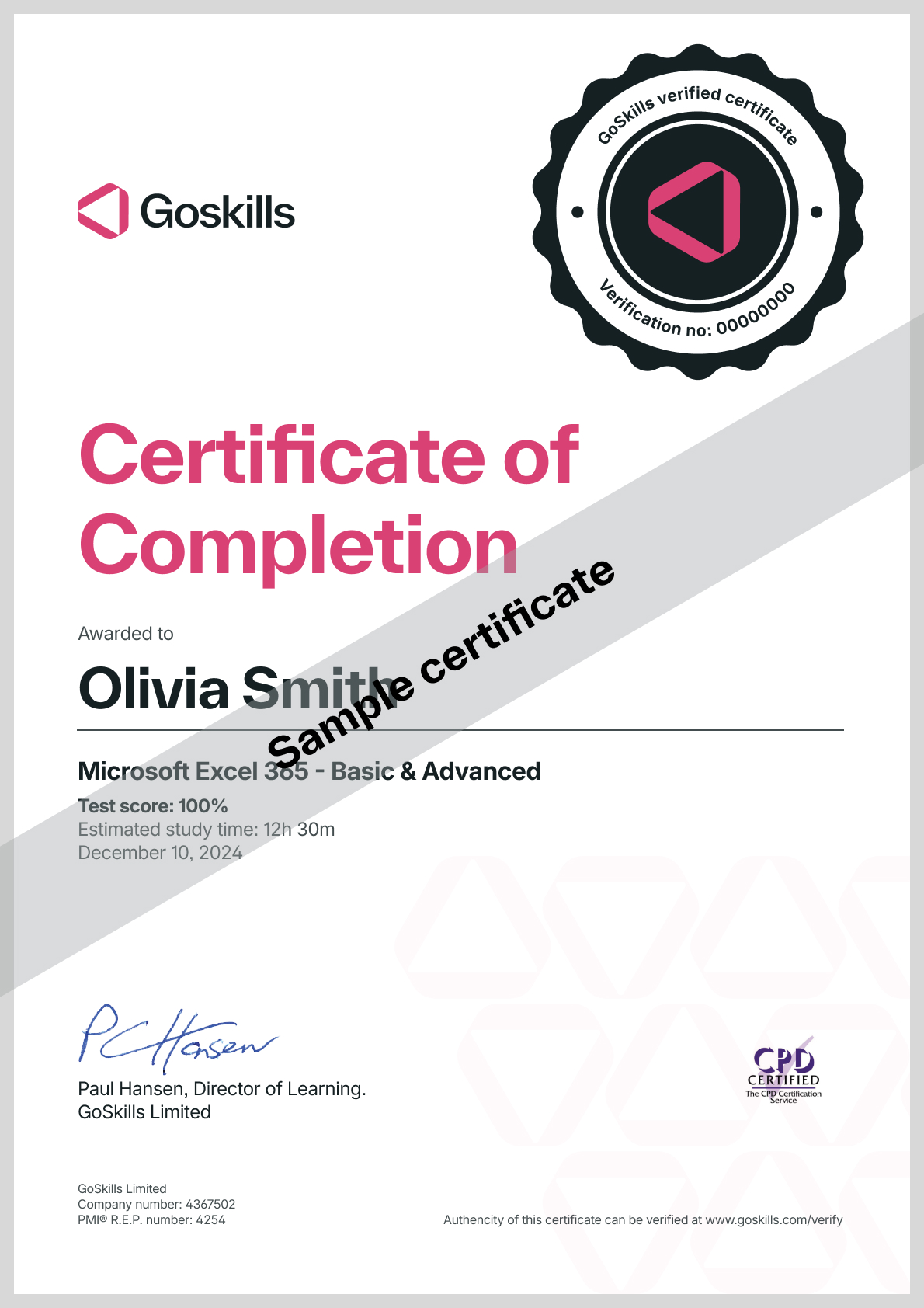
Certificate of Completion
Awarded upon successful completion of the course.
Instructor
Jeffrey Bradbury
Jeff Bradbury is an ISTE Award Winning (2021) and globally-recognized educator, educational broadcaster, public speaker, and entrepreneur whose powerful message has inspired thousands of educators through the TeacherCast Educational Network. Jeff Bradbury is a Technology Integration Specialist and the creator of the TeacherCast Educational Network. With a background in Music Education, Jeff began performing in front of live audiences at a very early age and grew to love the opportunities he had working with others. This led him to earn his Bachelor of Science in Music Education in 2001 and eventually his Masters in Music Performance in Orchestral Conducting in 2010.

Jeffrey Bradbury
Instructional Coach, Educational Technology Expert, Speaker
Accreditations
Link to awards
How GoSkills helped Chris
I got the promotion largely because of the skills I could develop, thanks to the GoSkills courses I took. I set aside at least 30 minutes daily to invest in myself and my professional growth. Seeing how much this has helped me become a more efficient employee is a big motivation.