
Finding a value in Excel is usually straightforward. But what happens when one lookup condition isn’t enough? Perhaps the same customer appears several times in your dataset, or you need to retrieve records that match different search criteria.
That’s where knowing how to perform an Excel lookup with multiple criteria comes in handy.
So, let’s put these skills into practice with this free exercise.
Ready to give it a go?
Here’s how to get started:
- Watch the challenge video for a complete overview.
- Review the instructions below.
- Download the challenge workbook.
- Share your approach with our GoSkills Excel Slack community.
- Watch the solution video to compare your results and formulas.
Download the challenge workbook
Get the workbook with the challenge instructions and workspace for your solution.
The challenge 🧗
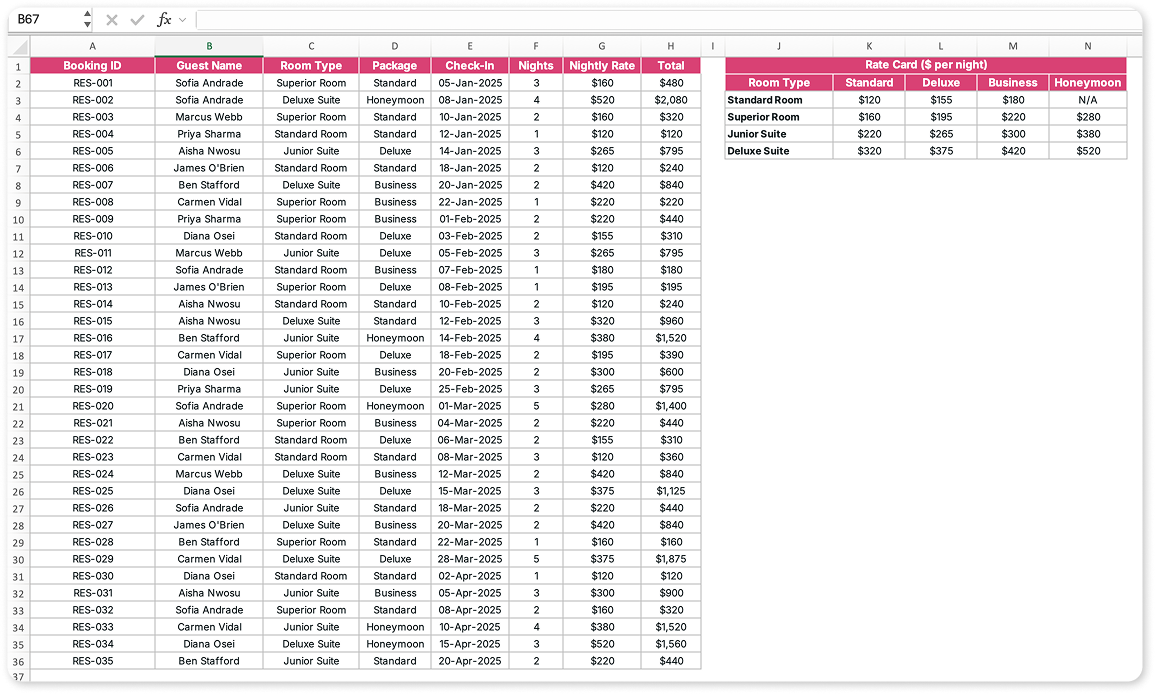
You’ve been given a dataset containing 35 guest reservations, including booking IDs, guest names, room types, packages, check-in dates, number of nights, nightly rates, and total charges.
There’s one important detail: some guests have multiple reservations, sometimes with different room types or packages. So, looking up a guest’s name alone won’t always return the information you need.
You’ll also find a rate card showing the nightly prices for each room and package combination.
Your job? Help the reservations and accounts teams solve three booking-related problems using the information provided.
Your mission ✅
1. Find a specific guest booking
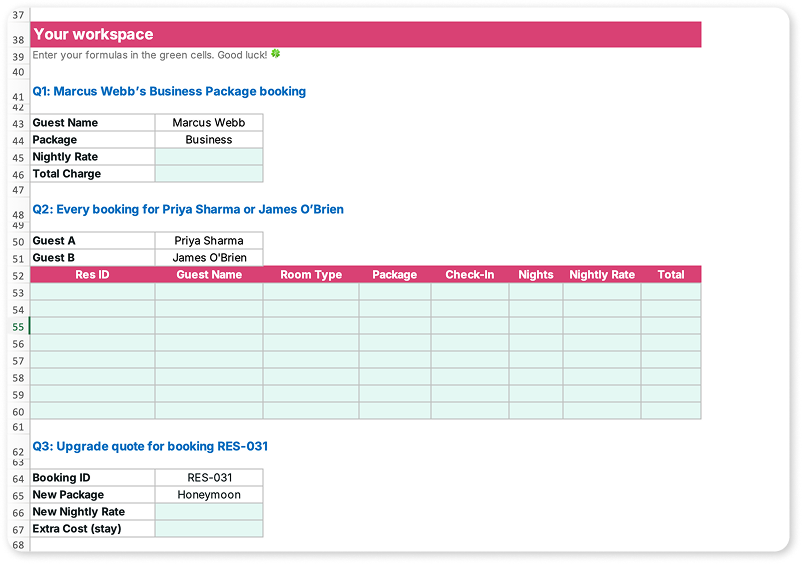
Marcus Webb has three bookings on file, but Accounts needs the details of just one.
Find his Business Package booking only and return the following information:
- Nightly rate
- Total charge
Make sure your results correspond to the correct reservation, not simply the first occurrence of his name in the dataset.
2. Retrieve all bookings for two guests
Priya Sharma and James O’Brien attended the same corporate retreat.
Pull all bookings for both attendees into one list so Accounts can bill them together.
Your final output should include all the booking details for both guests, not just their names or a single matching reservation.
Can you retrieve everything in one go?
3. Calculate the cost of a package upgrade
A guest with booking ID RES-031 wants to upgrade their existing reservation to the Honeymoon Package.
The room type will remain the same.
Using the booking details and rate card, find:
- The new Honeymoon nightly rate for the guest’s room type.
- The extra cost of upgrading for the full stay.
To calculate the additional charge, use:
Extra cost = (New nightly rate − Current nightly rate) × Number of nights
The hint 💡
Excel offers several ways to approach these situations, and recognizing which method fits the problem is part of this month’s challenge.
For a refresher, check out our guide on how to look up multiple criteria or return multiple results in Excel. It explores different lookup methods, including how to work with AND/OR logic and retrieve multiple matching records.
That should give you a good starting point without us giving away the solution. 👀
A few concepts worth recapping 📚
1. What is a multiple-criteria lookup in Excel?
A multiple-criteria lookup allows you to retrieve information based on two or more conditions instead of searching for a single value.
This approach is useful when working with repeated records, sales transactions, bookings, employee information, or any dataset where one search value isn’t sufficiently specific.
2. What’s the difference between AND and OR logic?
When performing an Excel lookup with multiple criteria, it's important to understand how your conditions relate to one another.
- AND logic: A record must satisfy all specified conditions to be included. For example, a booking must belong to a particular guest AND have a specific package.
- OR logic: A record can satisfy any of the specified conditions. For example, a booking can belong to one guest OR another.
Choosing the appropriate logic helps ensure your formula returns the records you actually need.
3. What is a two-way lookup in Excel?
Sometimes, the value you’re looking for depends on two pieces of information arranged in a table.
A hotel rate card is a good example. Room types might be listed vertically, while packages appear horizontally.
To retrieve the correct price, Excel needs to identify the appropriate row and column, then return the value where they intersect.
This is known as a two-way lookup, and it’s particularly useful when working with pricing matrices, commission tables, and other structured datasets.
The solution ✅
How did you get on?
As with many Excel problems, there’s often more than one way to reach the correct result.
In our solution video, we walk through each task step by step, explaining which formulas we chose, how they work, and how to reference input cells rather than hardcoding values.
We’d love to see how you approached the challenge! Share your formulas in the comments or join our GoSkills Excel Slack community to compare solutions with other Excel enthusiasts.
Need more Excel practice online? 🤩
If you enjoyed this challenge, why not keep your Excel skills sharp with another practical exercise?
Check out our full archive of Excel Challenges and get 65+ free Excel practice exercises.
Want to take your skills further? Explore the GoSkills Excel – Basic & Advanced course to learn more ways to work with formulas, analyze data, and tackle everyday spreadsheet tasks.
Keep learning, keep practicing, and see you in the next Excel Challenge! 👋

Join the Excel conversation on Slack
Ask a question or join the conversation regarding Excel challenges on our Slack channel.
Join Slack channel